App Store Retention Messages: Rules and Setup Guide
App Store retention messages are a new App Store Connect feature, live since November 4, 2026. They let you show a short message to a subscriber at the moment they start to cancel. The message can be text only, text with an image, or text with a special offer. You set them up in App Store Connect with no code. If your app sells an auto-renewable subscription, it costs you nothing but an afternoon of writing, and we would set one up this month.
Apple's announcement puts it simply: retention messages "appear in the cancellation flow and can include text, images, or a special offer." The rest of this guide covers what that means in practice, using Apple's own App Store Connect Help page as of November 2026.
What a retention message is
Until now, a subscriber who opened their subscription settings and tapped cancel left without hearing from you. You could send a win-back offer later, after the subscription lapsed. You could not say anything in the moment.
A retention message fills that gap. When a subscriber starts to cancel, Apple shows your message inside its own cancellation screen. You write a header and a body. You can add an image. You can also attach a retention offer, such as a discount or a free period, and subscribers who qualify see the offer in place of the image.
Three versions exist, and Apple picks which one a person sees:
- Text only: the header and body you wrote.
- Text and an image: shown when no offer is attached, or when the subscriber does not qualify for the offer.
- Text and a retention offer: shown when an offer is attached and the subscriber qualifies.
The message reaches people at the door, after they have decided to leave but before they have left.
What you are allowed to say
This is the part most likely to trip you up in review. Apple's help page says the header and body must not mention promotional offers, discounts or specific prices. Its own examples of banned phrases are "$9.99," "50% off," and "one month free." App Review rejects messages that contain pricing or offer mentions. Apple also asks you to avoid all-caps text and repeated exclamation marks, and it strongly discourages superlatives or statistics you cannot verify.
That rule feels odd at first, since an offer can sit right under your text. Our read is that Apple shows the offer itself, with its real terms, so your copy does not need to describe it. Your words should do a different job: remind the person why they signed up.
Good copy for a retention message sounds like this (illustrative, not from a real app):
- "Your saved routines stay here. Next week's plan is already built for you."
- "New recipes land every Friday, including the holiday menu you asked for."
Each one names a real feature or real upcoming content, and neither one mentions money. A good test is whether you would say the same line to a customer at your front desk.
The limits worth knowing
Apple's help page sets a few hard rules as of November 2026:
- You can create up to 10 retention messages per app.
- One message can cover many subscriptions, but each subscription can have only one message at a time.
- Retention offers only appear through a retention message. You cannot show one anywhere else.
- Each offer has a Paid Subscription Duration setting, the minimum time someone must have paid before they qualify, and a Wait Between Offers setting.
- Images come in two sizes: 3840 x 2160 or 5244 x 2950 pixels.
- Once a message is approved, edits go through a new version. You cannot roll back to an earlier published version, and a delete cannot be undone.
Only the Account Holder, Admin, App Manager or Marketing roles can set these up. If you are not sure who holds those roles on your account, read our guide on who owns your app developer account first. It matters more here than usual, because this is a money decision made inside the account.
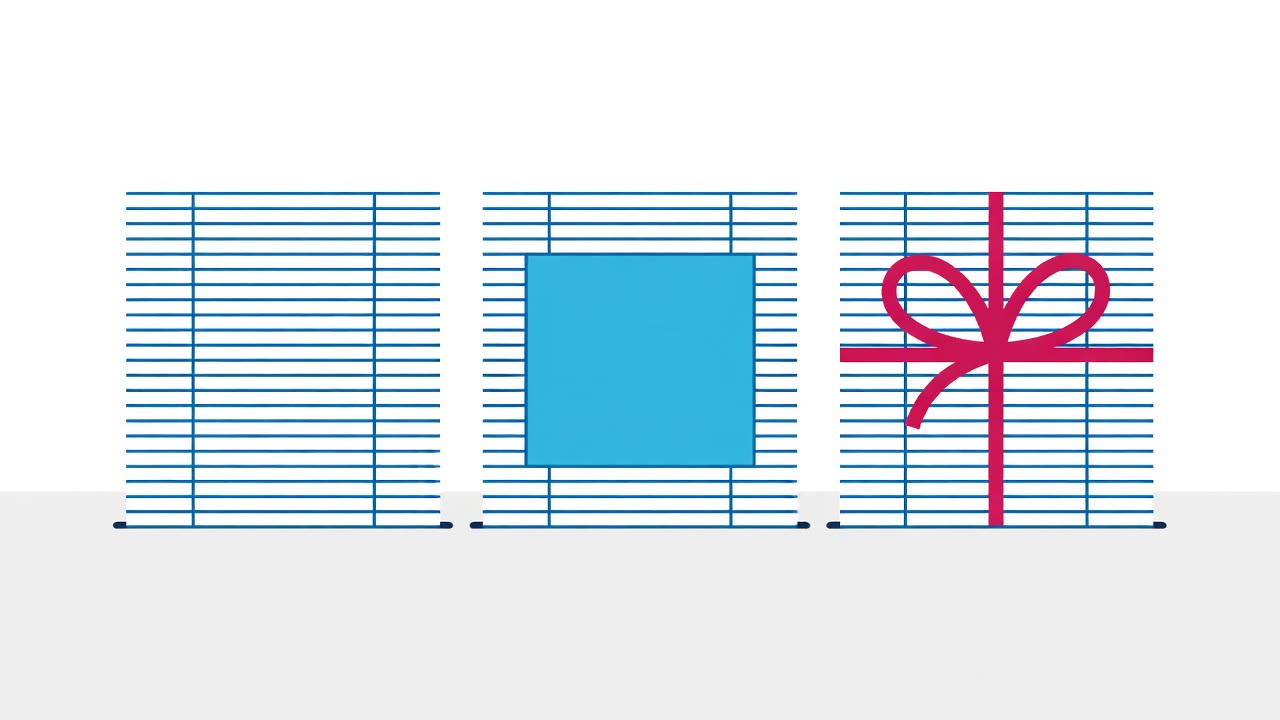
Apple picks one of three versions for each person, based on whether you attached an offer and whether they qualify.
How to set one up in App Store Connect
The steps from Apple's help page, in order:
- Go to Apps, pick your app, then Monetization, then Subscriptions.
- In the Retention Messaging section, click the plus button (or Get Started the first time).
- Give the message a reference name and click Create.
- Write the header and body text, then add translations for each language you sell in.
- Add an image if you want one, then click Save.
- Under Subscriptions and Offers, pick which subscriptions this message covers.
- If you want an offer, click Add Retention Offer for each subscription and set it up.
- Preview it, then click Add for Review.
A message can go to review as soon as it has text. You can add the image and the offer later. If your copy mentions a price, expect it back with a rejection. Our post on why apps get rejected in App Review covers the general patterns.
Where developers come in
The basic setup above needs no code and no app update. A founder or marketing person can do it in an afternoon. That is the honest answer for most small apps, and you do not need to hire anyone for it, including us.
The developer work starts with the Retention Messaging API. Apple says this API lets you "choose which message to show each subscriber based on their subscription details," and that "API access is available by request." That means a server picks the message in real time. A subscriber who uses your app every day could see a different message from one who has not opened it in a month.
That is worth building only if you have real subscription volume and the server data to tell those groups apart. For a small app with a few hundred subscribers, one well-written message does most of the work. Keep in mind too that Apple's commission still applies to the discounted price, so check the numbers in our breakdown of App Store fees in 2026 before you offer a deep discount.
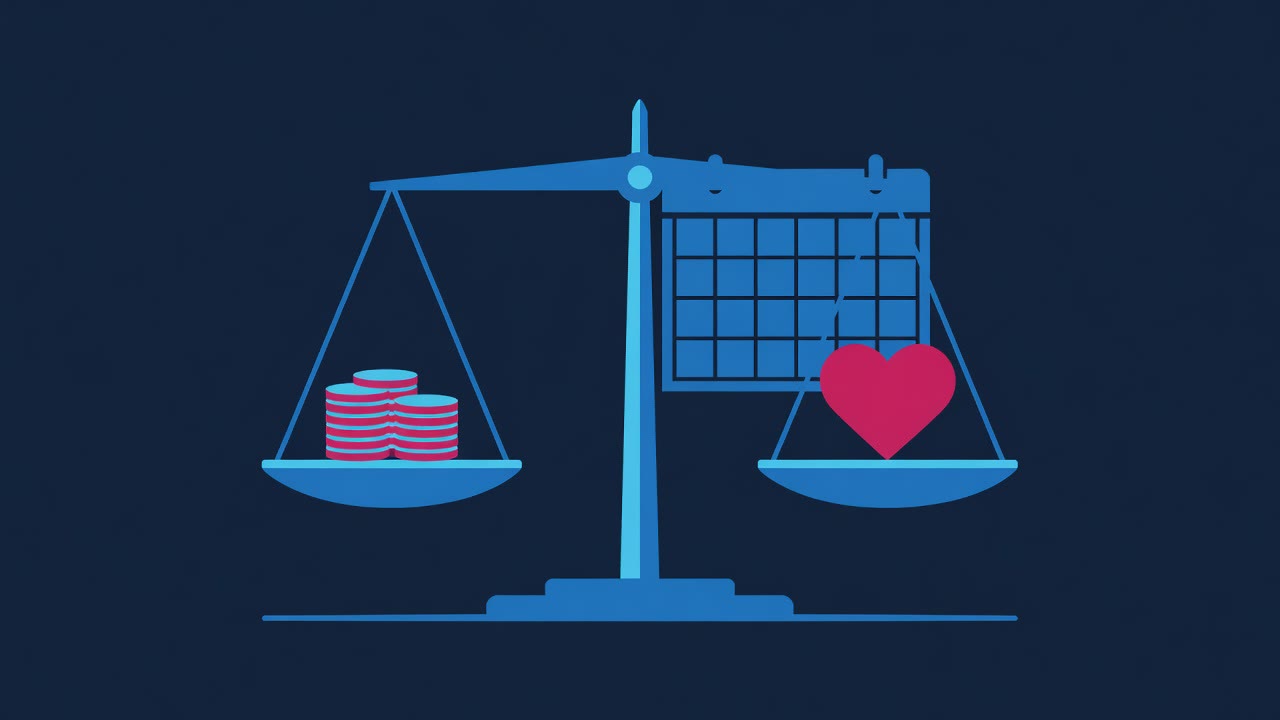
An offer keeps the customer but shrinks the revenue, so set the Paid Subscription Duration to protect your newest subscribers' full price.
A sensible first setup
If you sell a subscription and want a simple starting point, try this:
- One message for all your subscriptions, text and image, no offer. Name the one or two features people use most.
- Watch your cancellation numbers in App Store Connect for a few weeks.
- Then add an offer for longer-term subscribers only, using Paid Subscription Duration, so new users who were never going to stay do not get a discount.
That order tells you whether the message alone helps before you give money away. It also keeps your first submission simple, which makes review easier to pass.
App Store retention messages FAQ
Do App Store retention messages need an app update?
No. You set them up in App Store Connect and they go through their own review. Your app's code does not change unless you use the Retention Messaging API.
Can I mention a discount in the message text?
No. Apple's help page says the header and body must not reference promotional offers, discounts or specific prices, and App Review rejects messages that do. Attach the offer instead and let Apple show it.
Do retention messages work for one-time purchases?
No. They are for auto-renewable subscriptions only.
Is this the same as a win-back offer?
No. A win-back offer reaches people after their subscription has lapsed. A retention message reaches them while they are cancelling, before it lapses. You can use both.
Need a hand with the API side?
If you want messages picked by real usage data, that is server work, and it is the kind of project we take on. Book a free intro call and we will tell you plainly whether your subscriber numbers justify it.
Your app. In the stores. Done for you. US APP Team designs, builds, and launches your iOS and Android app for a fixed price. Start your app brief or book a free intro call — both are free.
Want to poke around first? Every tool in our free tool library runs in your browser with no signup: an app cost calculator, an app name generator, and a privacy policy generator.
